
Working with Comments and Memos
Writing a Comment
You find a field for writing comments in every Entity Manager.
To write a comment, select an item and type something in to the comment field. As soon as you select another item, the comment is automatically saved.
Changes can also explicitly be saved by clicking on the Save icon int the top right of the text pane.
All items that have a comment display a yellow post-it within their icon.
If you want to add formatting,
click on the icon with the arrow in the top right-hand corner. This opens a text editor that offers a number of formatting option.
Alternatively, you can right-click on any entity and select the Edit Comment option from the context menu and write a comment for the selected entity.
Creating Memos
Memos can be created from the Home tab, or in the Memo Manager.
To create a memo from the Home tab
Click the drop-down menu for New Entities and select New Memo.
Enter a name for the new memo and click Create.
Depending on your last settings, the memo editor may open as floating or docked window. If you want to change between floated and docked windows, see Interface Navigation,
To create a memo in the Memo Manager
Open the Memo Manager, from the ribbon select New and then Memo.
Enter a name for the new memo and click Create.
Begin to write your memo. When you are done, click the Save button and close the window.

Changing the Memo Type
Memos can be organized, sorted and filtered by the type attribute.
Several standard memo types are offered by ATLAS.ti: AI Summary, commentary, memo and theory. You can add new types or modify existing ones. The default type is memo.
To change the memo type or create a new one:
Select a memo in the Memo Manager and click on the Type button in the ribbon (or select it from the context menu).
Select one of the existing types, or add a new one.
Click the Set Type.
Opening an Existing Memo
You can access memos from everywhere: the Project Explorer, the Memo Manager, in the margin area if you linked a memo to a quotation, or from within a network.
If you want to review or continue to work on a memo, just double-click the memo.
Applying Codes in Memos
Open a memo and highlight a data segment that you want to code.
From the memo editor toolbar, select Coding or use the keyboard shortcut Ctrl + J and apply required code(s) in the coding dialogue.
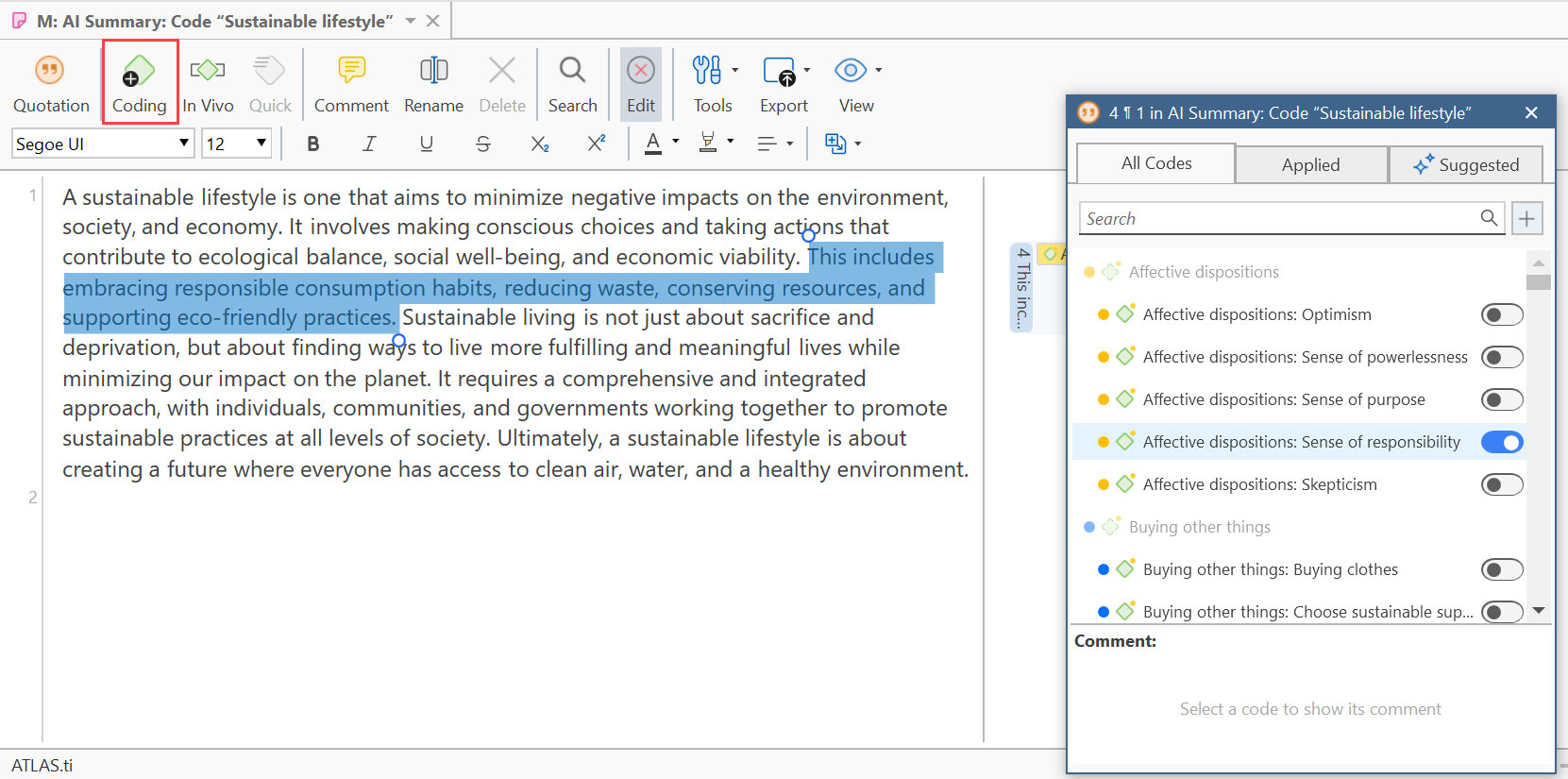
You can also use the following coding options:
- In Vivo: In Vivo coding creates a quotation from the selected text AND uses the selected text as the code name. The shortcut key combination is Shift + Ctrl + V
- Quick: Coding with the last used code, the shortcut key combination is Ctrl + L
You can also code data segments within a memo using the coding options from the context menu or by dragging and dropping codes onto selected text or directly onto a quotation in the margin.
Creating Quotations in Memos
Open a memo and select a data segment.
From the memo editor toolbar, select Quotation.

Linking Memos
Memos can be linked to quotations, codes and other memos. You can link memos per drag & drop basically anywhere in the program, or visually in networks. See Linking Nodes. Below a few examples are given.
Linking Memos to Quotations
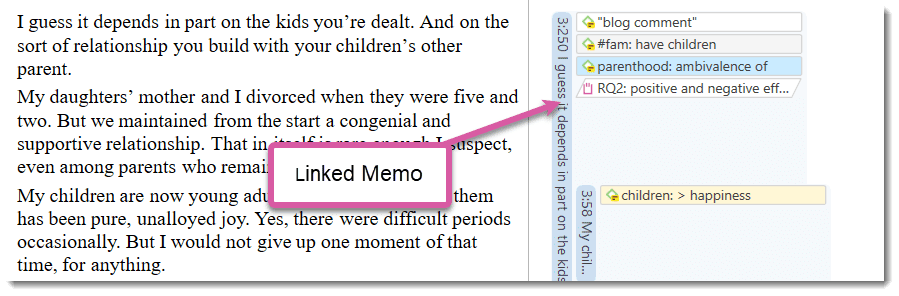
The following options are available:
-
Drag & Drop a memo from the Project Explorer or Memo Manager onto a highlighted quotation, or on a quotation in the margin area. You can also drag the quotation to the memo.
-
Drag & Drop a memo from the Project Explorer or Memo Manager to a quotation in a result list (or vice versa) in the query tool, the Code Document Table, Code Co-occurrence Table, or results from a project search.
-
Drag & Drop a memo from the Project Explorer or the Memo Manager to a quotation in the Quotation Manager (or vice versa).
-
Link a memo to a quotation (or vice versa) in a network. See Linking Nodes.
Reviewing Quotations Linked to a Memo
To review all quotations linked to a memo, hold down the Ctrl key + double-click. This opens the Quotation Reader, and you can read all quotations that you have linked to the memo.
Do not drop a memo onto a code in the margin area. This action will replace the code with the memo, which in most cases is not the wanted outcome.
Linking Memos to Codes
The following options are available:
-
Drag & Drop a memo from the memo branch in the Project Explorer or the Memo Manager to the code branch in the Project Explorer (or vice versa).
-
Drag & Drop a memo from the Memo Manager to a code in the Code Manager (or vice versa).
-
Link a memo to a code (or vice versa) in a network. See Linking Nodes.
Linking Memos to Memos
The following options are available:
-
Drag & Drop a memo to another memo in the memo branch of the Project Explorer.
-
Drag & Drop a memo to another memo in the Memo Manager.
-
Link a memo to a memo in a network. See Linking Nodes.
Converting a Memo into a Document
As a lot of the analysis happens while you write memos, in some cases you may wish to convert a memo into a document as secondary data so that you can code it.
Select a memo in the Memo Manager and click on the Convert to Document button in the ribbon, or select it from the context menu. Alternatively, right-click on a memo in the Project Explorer and select the option Convert to Document from the context menu.
The memo is then added to your list of documents.
You can continue to use the memo as memo. The memo comment is not transferred. It is treated independently of the comment that you may want to write for the memo document.