
Network Manager
The Network Manager is frequently used to create and open networks, to rename, comment and group them.

Degree: Number of nodes in a network.
Double-click opens the network editor as floating window. This window can be docked into the currently active region.
Drag & Drop: You can add a network as node to a network editor, or assign selected networks to a group via drag & drop.
Filter: Click on one or more network groups in the filter area on the left to set a local filter. This means only the items in the manager are filtered.
Status Bar: The Status Bar shows how many networks there are in the project.
Network Manager Ribbon

From right to left:
New: Under "New", you can view the following options:
- Network: Create a new network.
- Folder: Add a new network folder.
- Group: Create a new network group based on the selection you have made.
- Smart Group: Smart Groups are a combination of existing network groups using Boolean operators. This option is only available to offer consistent choices in all managers. You may not even feel the need to create network groups, let alone combining them using smart groups.
Comment: Open a text pane for writing or editing a comment for a network in a full-fledged text editor.
Network: Opens the network.
Rename: Change the name of an existing network.
Delete: Delete selected network(s).
Duplicate: Duplicates the selected network. This option is useful it you want to create a spin-off of an already existing network where parts of the existing network is still relevant, and you want to build on it further.
Excel: Exports the information displayed in the Network Manager.
Group: Open the group manager for networks.
View: By default, the Network groups are displayed on the left-hand side, the Network list appears in the detail view, and a comment is shown below the list.
Search & Filter / View Tab
As these tabs are the same in all managers, they are discussed here: Entity Managers.
Organizing Networks in Folders
Networks can be organized into folders. Folders can be contained in other folders. There might be projects that require different levels of network organization. Below is an example with three levels:
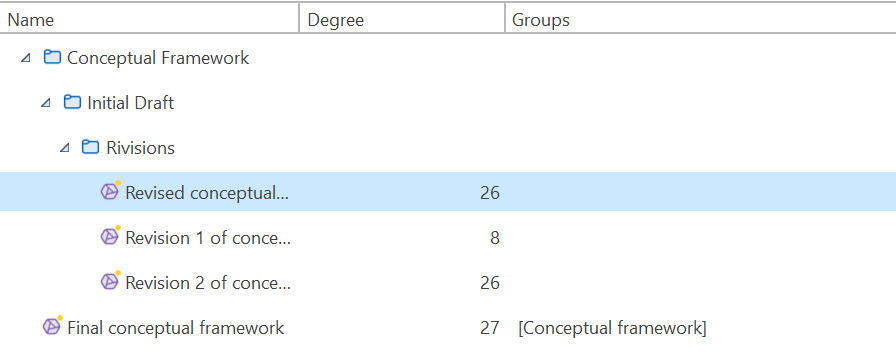
In contrast to groups, a network cannot be in more than one folder. The folder structure is hierarchical; groups are not.
How to create folders
In the Network Manager ribbon, click New and select Folder.
Or:
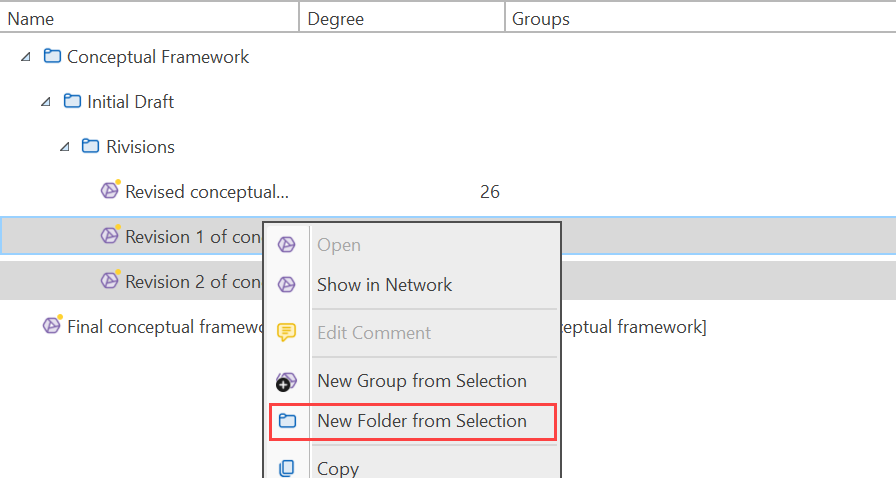
Select one or more networks, right-click and select the option New Folder from Selection from the context menu.
If you delete a folder, all content in the folder is also deleted.