
Quotation Manager
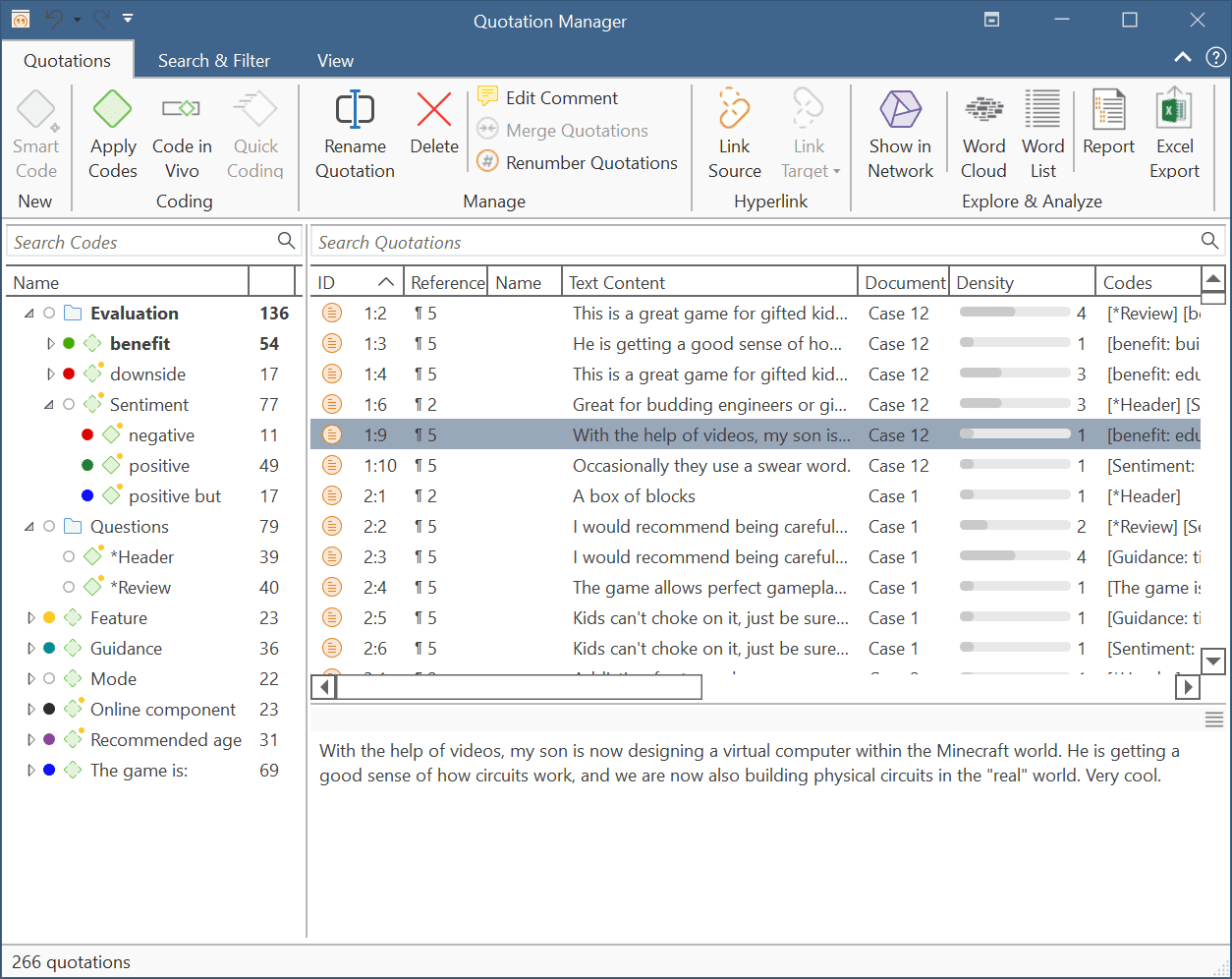
The Quotation Manager can be used for retrieving and reviewing data by codes, creating smart codes, writing comments, creating reports, or opening networks. When working with multimedia and geo data, it is useful to rename quotation names as titles for audio- or video segments or for location names for geo data. See Working with Quotations.
Quotation Reference
ID: The ID consist of two numbers best explained by an example: An ID 3:10 means that the quotation comes from document 3, and it is the 10th quotation that was created in this document. Quotations are numbered in chronological and not in sequential order.
Reference: The reference indicates the location of the quotation in the document, e.g., paragraph 12 - 13. For audio and video documents, the reference gives the start position in h:m:s. For geo quotations, the geo-location is provided.
Indicator of Hyperlinks: Brackets (< or >): indicate that the quotation is a start anchor or target for a hyperlink. For further information see Working with Hyperlinks.
Position in the Document: Start / End / Extent
If you scroll a bit to the right, you find information about start and end position of a quotation in the document, and the total length of a quotation. The measure that is used is dependent on the media type:
Start / End
- Text quotation: number of paragraphs
- Text PDF: page number in ATLAS.ti plus number of characters on the page
- Graphic quotation: upper left coordinates / lower right coordinates
- Audio quotation: hours:minutes:seconds: milliseconds
- Video quotation: hours:minutes:seconds: milliseconds
- Geo quotation: n/a
Extent
- Text quotation: total number of paragraphs
- Text PDF: total number of pages covered
- Graphic quotation: height in pixel of the quotation's rectangle.
- Audio quotation: hour:minutes:seconds:milliseconds
- Video quotation: hour:minutes:seconds:milliseconds
- Geo quotation: n/a
Adding Quotation Names
Name: The name field initially is empty. You can enter a name for each quotation, e.g., to enter a title, a description for an image quotation, or a geo-location. See also Working with Quotations.
Selection Behaviour
A single-click selects a quotation. If you have written a comment for the selected quotation, it is displayed in the at the bottom of the window.
A double-click on a quotation loads its document (unless already loaded) and displays its content in context.
Multiple Selection: You can select more than one quotation at a time, either to delete them, to attach codes, to open a network on them, or to create output.
Drag & Drop
By dragging one or more quotations onto other quotations, you create hyperlinks. See Working with Hyperlinks for further information.
Filter
Click on one or more codes in the filter area on the left to view only quotations linked to the selected code(s).
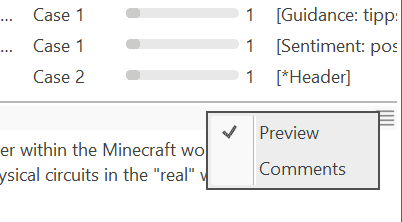
By default, the quotation preview is displayed in the bottom pane of the window. To change between quotation preview, and comment view, select either Preview, or Comment in the segmented control at the top-right corner of the bottom pane.
Status Bar: The status bar at the bottom shows how many quotations there are in the project.
Quotation Manager Ribbon

From left to right:
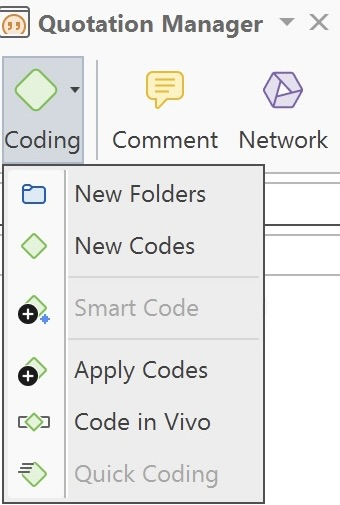
Coding:
-
New Folders: You can create a new folder by clicking on the corresponding option, or by selecting multiple codes, right-clicking, and choosing "New Folder from Selection”. See organizing codes in folder.
-
New Codes: You can create a new code by clicking on the corresponding option.
-
Smart code: After selecting codes in the side panel of the Quotation Manager you can create smart codes. See Working with Smart Codes.
-
Apply Coding: Coding a selected data segment with a new or existing code. See Coding Data.
-
Code in Vivo: In-vivo coding creates a quotation from the selected text AND uses the selected text as the code name.
-
Quick Coding: Coding with the last used code.
Comment: Open a text editor for writing or editing a comment for a selected quotation. See Working With Comments and Memos.
Network: Open a network on one or more selected quotations. See Opening an ad-hoc Network.
Rename: You have the option to enter a name for each quotation. This is useful for interpretive analysis approaches, e.g., to summarize the quotation content or to use it as 'initial code' when using Charmaz's constructive grounded theory approach. It is also useful when working with multimedia data to describe the multimedia content in words.
Delete: Removes the quotation and all codings and other links from the project.
Source: Uses the selected quotation as source in the process of creating a hyperlink. See Creating Hyperlinks.
Target: Click to select the selected quotation as target in the process of creating a hyperlink. See Creating Hyperlinks.
Words: Click to analyse the selected data and view results in the form of a word cloud, a word list, or a tree map. See Exploring Text Data.
Tools:
-
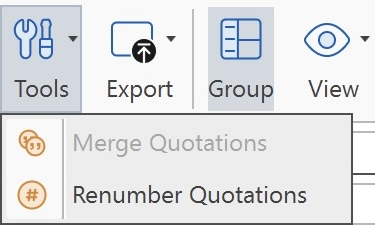
Merge Quotations: You can merge two or more quotations. The new quotation boundary can either be the boundary of a selected target quotation, or it can be expanded to include all selected quotations.
-
Renumber Quotations: This eliminates all gaps in quotation numbering due to deletion and renumbers all quotations in sequential order as they occur in the document.
Export: Reports can be created as text file (Word, PDF), or in Excel format. All reports are customizable. See Creating Reports.
Group: In the Quotation Manager, you’ll find a Group button that controls the visibility of codes. By default, codes are displayed. Clicking the Group button will hide the codes section. Clicking it again will show the codes once more.
View:
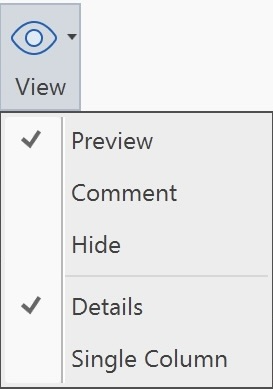
By default, the codes are displayed on the left-hand side, the quotations list appears in the detail view, and a comment field is shown below the list. In addition, you can switch between Details and Single Column view.
Search & Filter / View Tab
The search function is now available under "Search Project" in the Tools menu at the top.
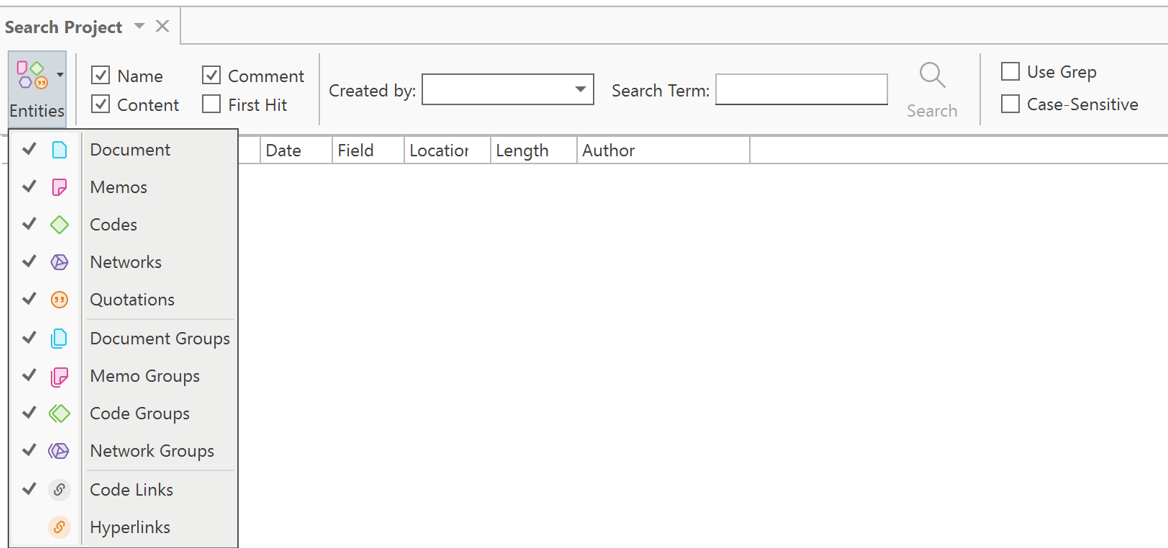
The Search Project allows you to search through the entire content of documents, quotations or memos, through entity names and comments, or entities created or written by a selected author. The search term can contain regular expression. See Regular Expressions (GREP).
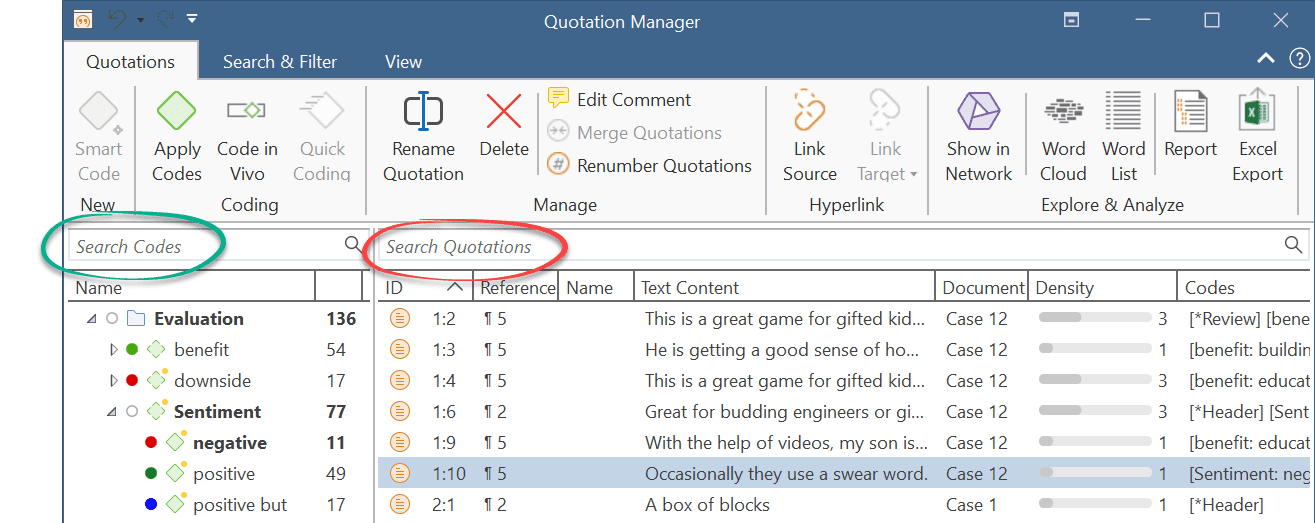
The filter area on the left-hand side can be used to quickly access and filter the elements listed in the managers via groups. They allow immediate access to fundamental activities like selecting groups, creating groups and smart groups, and setting local and global filters. This allows a much more effective integration into the workflow and saves a lot of mouse movements and clicks. It is also possible to run simple Boolean queries in entity managers.
Click on one or more codes in the filter area on the left to view only quotations linked to the selected code(s).
By default, the codes are displayed on the left-hand side, the quotations list appears in the detail view, and a comment field is shown below the list. In addition, you can switch between Detail and Single Column view.