
Creating Word Lists
To create a word cloud, navigate to the Project Explorer or the respective entity manager and select one or more entities (documents, codes, or quotations).
In the Project Explorer, right-click and select the option Analysis > Word Frequencies. In the Managers, you can also select the Analyze > Word Frequencies option in the manager ribbon. Click the List icon to display the word list.
You can always add or remove more items of the same entity type to the list once the word list has been created (see Setting the Scope below).
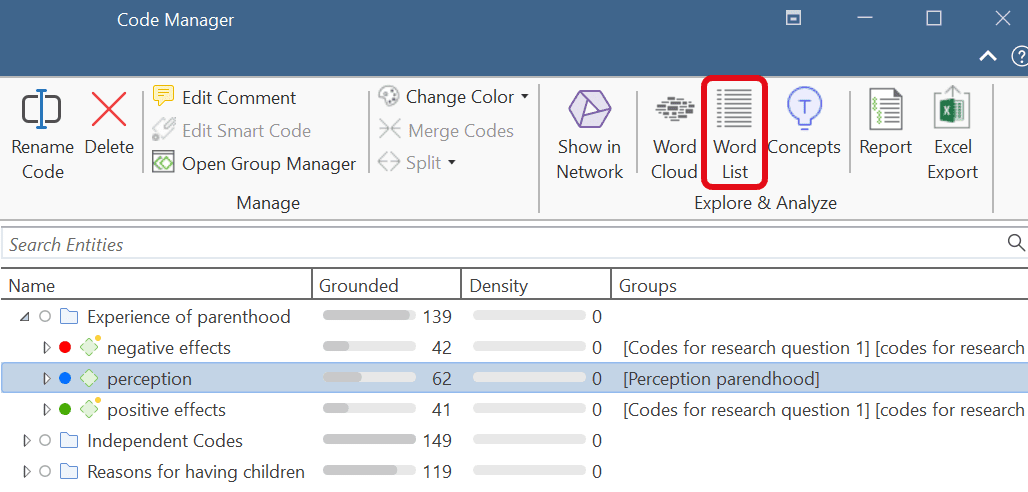
Other options to access a word list include:
- Load a document and select the Analyze > Word Frequencies option in the editor ribbon, followed by clicking the List icon.
- Opening the Search & Code tab, then selecting the Word Frequencies option in the ribbon, followed by clicking the List icon.
When you select to create a word list from codes, the word list shows the words of the quotations coded with the selected code(s).
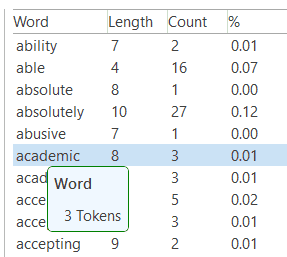
When you hoover over a word, its frequency is shown (= token / number of occurrences of a unique word).
Sorting Word Lists
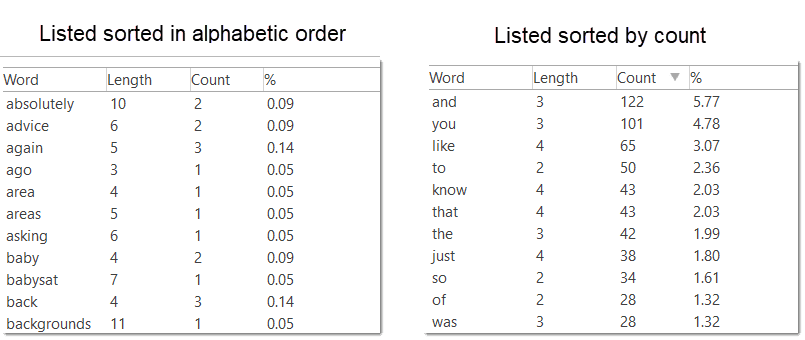
Be default, word lists are sorted in alphabetic order by the first column 'Word'. You can also sort by any of the other columns by clicking on the column header.
Setting the Scope
Once you created a word list, you see a side panel on the left. The checkboxes of the currently active entities are checked. You can check further entities or uncheck already activated entities.
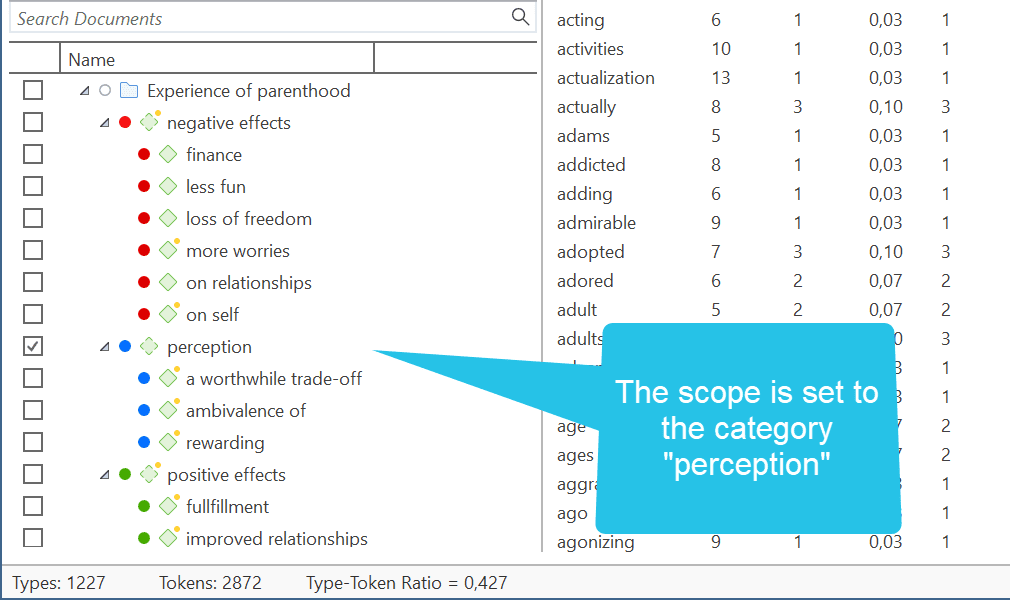
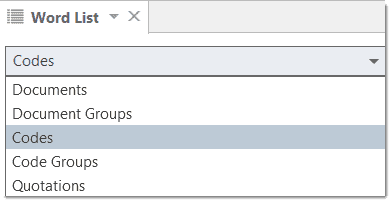
You can also change the entity type. Options are to change between:
- documents
- document groups
- codes
- code groups
- quotations
Another option is to enter a search term into the search field to look for a specific document, code, or quotations that only contain specific words.
World Frequencies Ribbon
The Word Frequencies ribbon provides several options:
Scope: You can activate or deactivate the side panel that allows you to select the scope.
Cloud/List/Treemap: The tool will analyse the selected data and return the results in the form of a word cloud, a word list or a tree map.
Threshold: By moving the slider from left to right, you can determine that only words with a certain frequency are displayed. The number of the left-hand side shows the lowest, the number on the right-hand side the highest occurring frequency.
Exclude: Words in stop lists are words which are filtered out when processing text. Stop words are short function words that occur very often, and which do not convey any particular meaning. Examples are 'the', 'a', 'you', 'is', 'at', 'on' and 'which'. ATLAS.ti offers predefined stop lists in 35 languages. These stop lists are based on the information provided by (Ranks NL).
Tools:
-
Ignore Case: Select this option, if you do not want to count words separately depending on whether they contain upper or lower case letters.
-
Infer base forms: The plural forms of nouns, the past tense, past participle, and present participle forms of verbs, and the comparative and superlative forms of adjectives and adverbs are known as inflected forms. If you activate this options, the word cloud only shows the basic form of the word, e.g. building but not buildings.
-
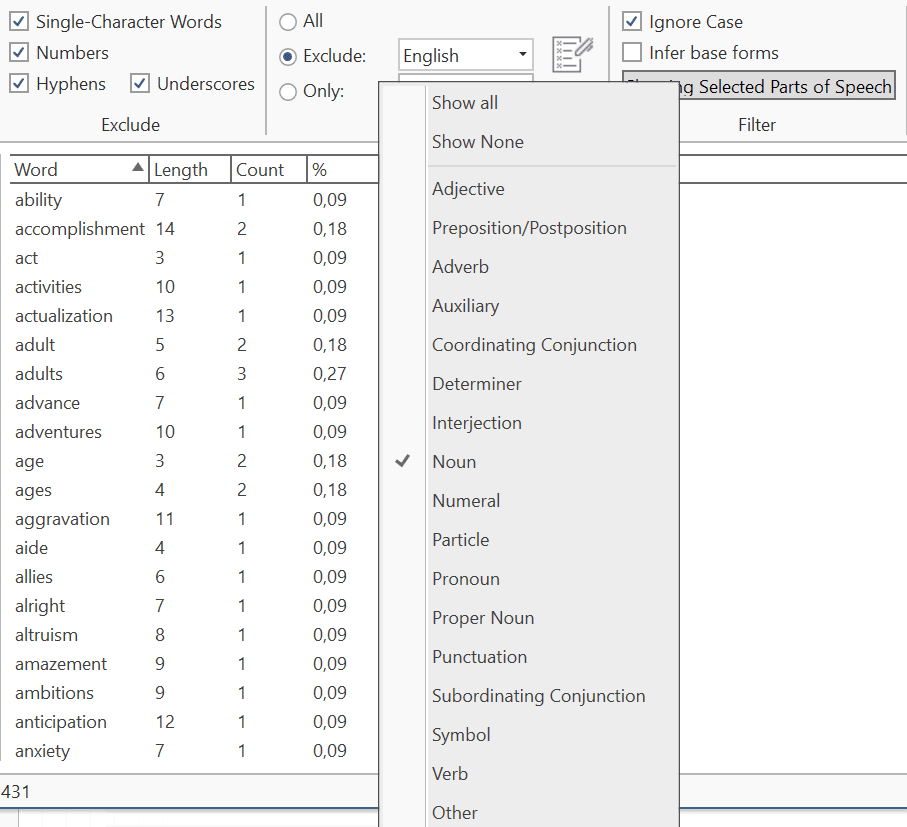
Parts of Speech: This options allows you filter your data by specific grammatical elements (parts of speech) like adjectives, nouns, numerals, pronouns, etc. Below you see an example that only shows nouns:
Filter:

Character Filter: In this section you can enter special characters that you do not want to be counted and displayed in the word cloud. By default, the following characters are excluded:
|"(){}[]<>/\#+-_%$&“”´`@^‘„
You can select whether these characters should generally be removed or only at word ends.
If you add or remove characters, or deactivate the restriction to word ends, you can click on the Reload button. This updates the word cloud.
Context Menu Options
When you right-click on a word, you have the following options:
- Hide from List
- Add to Stop List
- Add to Go List
- Copy to Clipboard
- Search in Context
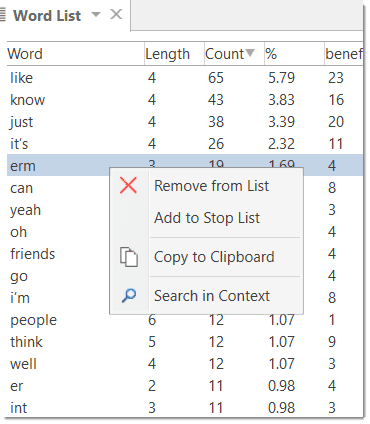
The option Hide from List temporarily removes the word from the list.
If you have selected a stop list, you can add more words to it.
The Copy to Clipboard option is useful, if you want to run the auto coding tool based on some words in the word List. See Text Search.
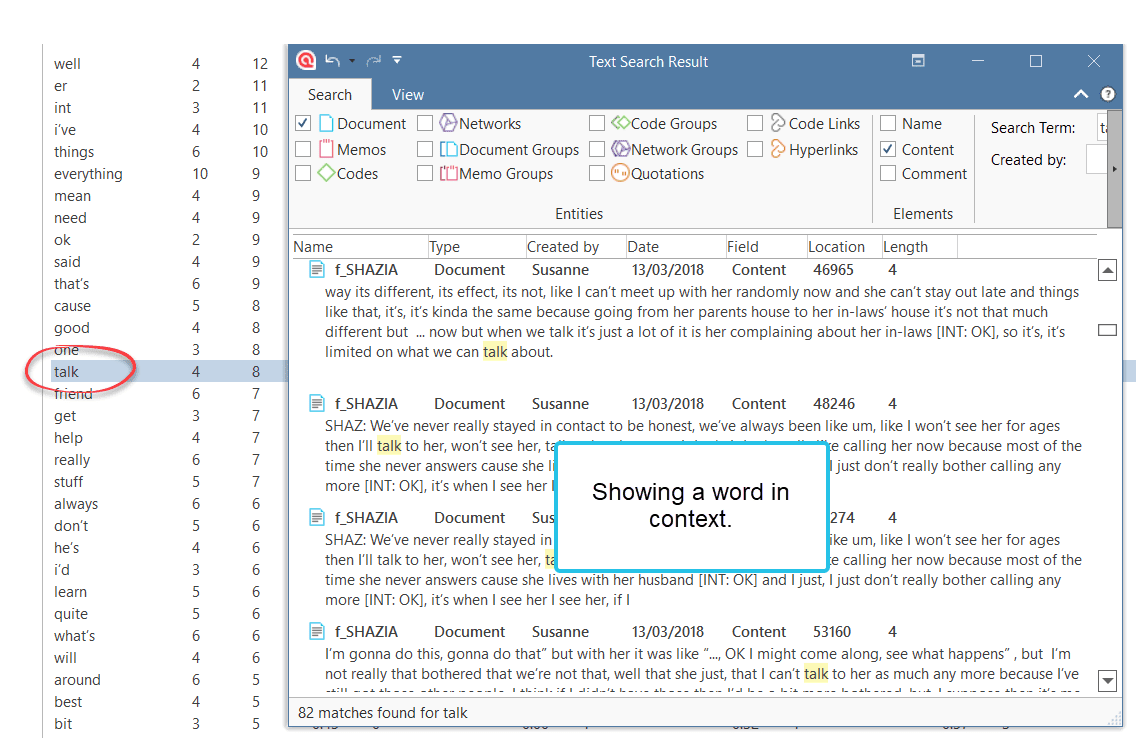
The Search in Context option opens the Project Search and shows the selected word in its context.
Stop and Go Lists
Working with Stop and Go Lists are explained in detail here.