
The Document Manager
The Document Manager helps you to organize your data, to group documents or to filter them.
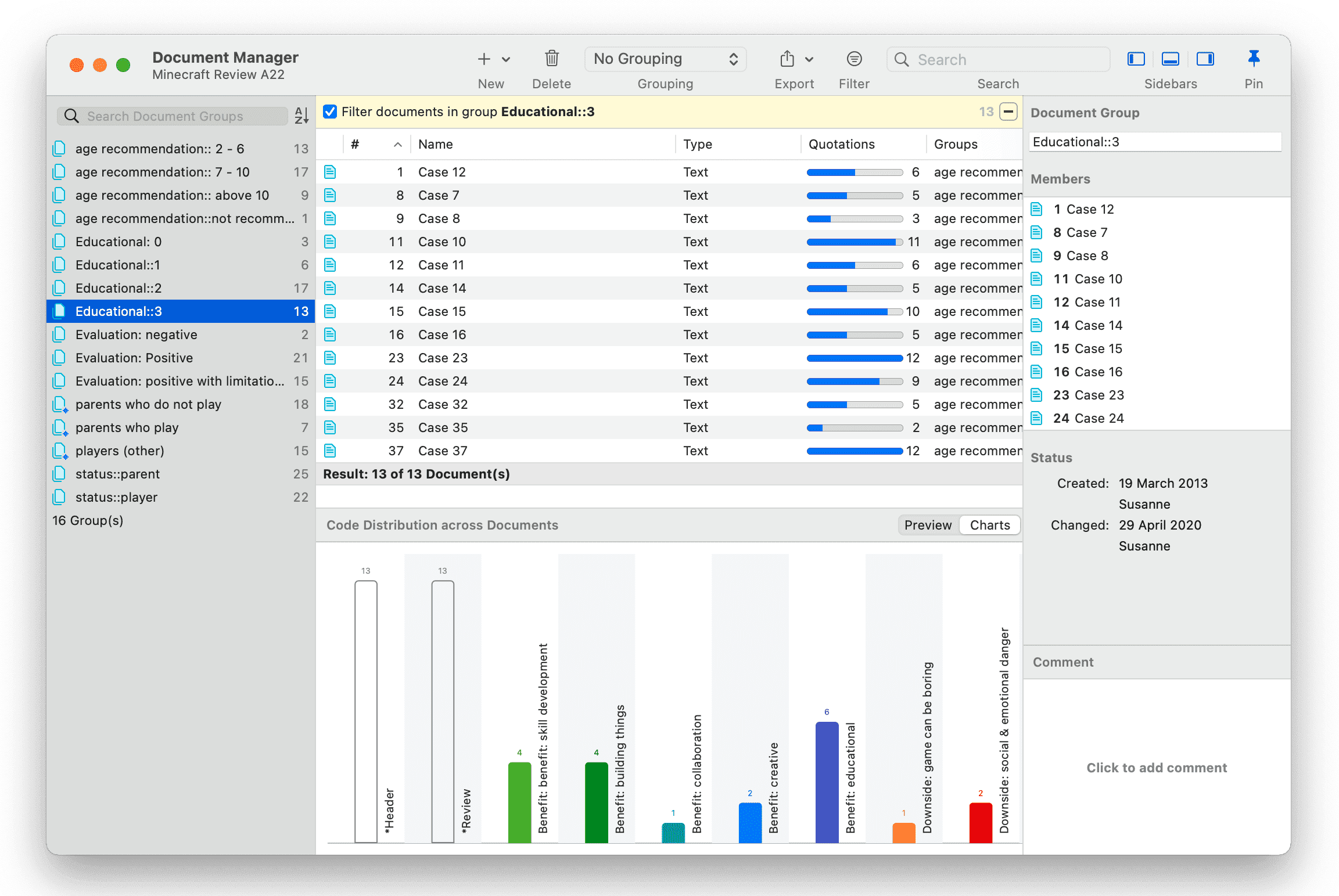
Inspector: In the inspector on the right, you can change the document name, write a comment for the document (Working With Comments And Memos), and see which document groups the document is assigned to. Further, you can review the creation and modification date.
Filter
Click on one or more document groups in the filter area on the left to set a local filter. This means only the items in the manager are filtered.
If you want to filter the entire project, right-click on a document group to set a global filter. See Applying Global Filters For Data Analysis.
Document Manager Toolbar

From left to right:
New: Add a new document to your project. See Adding Documents.
Delete removes selected document(s) from a project. This is a permanent deletion. It also means that all coding done on the document(s) is deleted. You can revert the action using UnDo, but only within the currently active session.
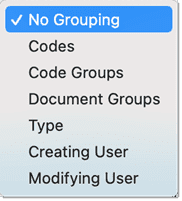
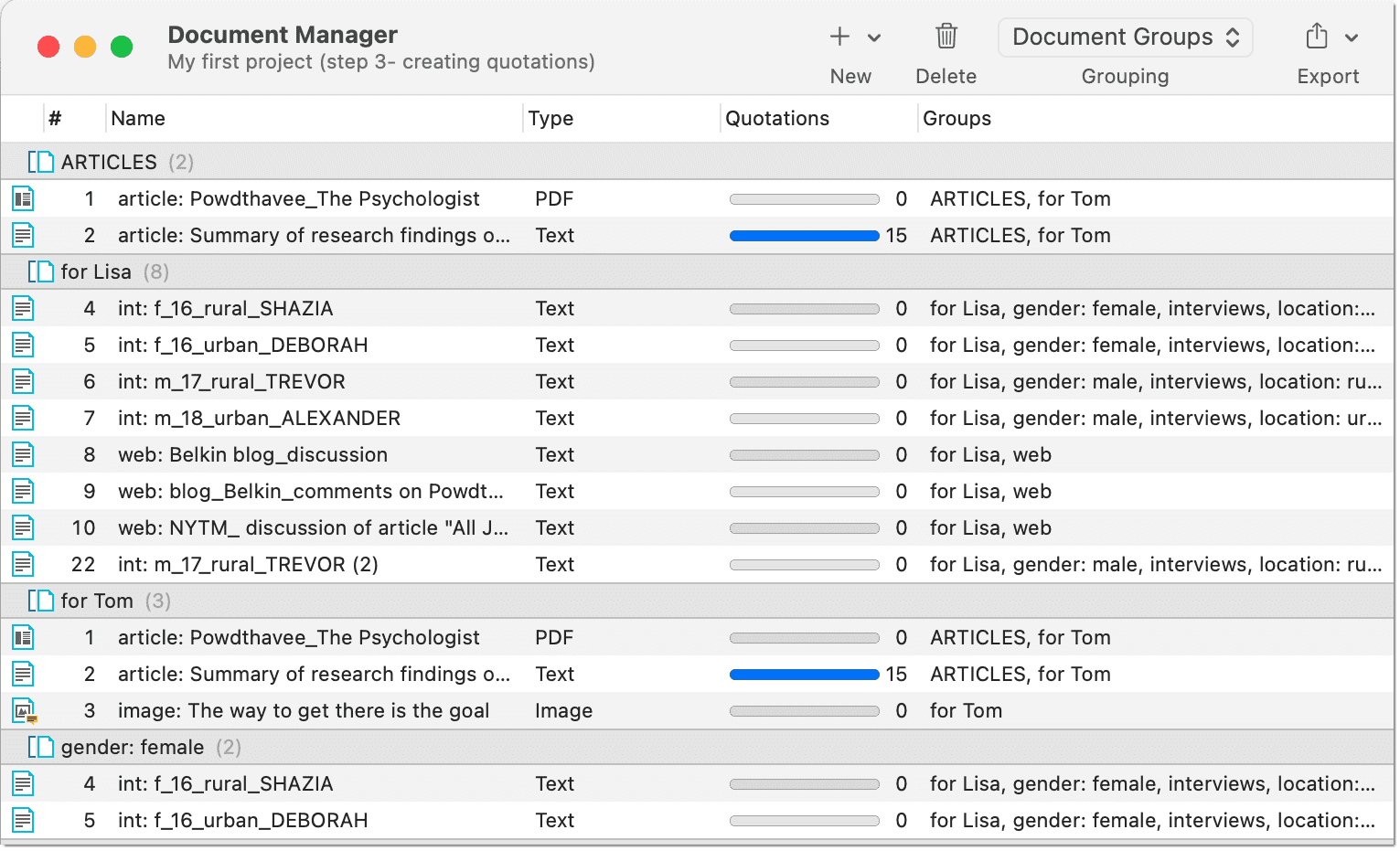
Grouping: You can view the list of documents in different ways. You can group them by codes, code groups, document groups, document type or creating / modifying user:
Below you see a Document Manager where the document list is grouped by document groups:
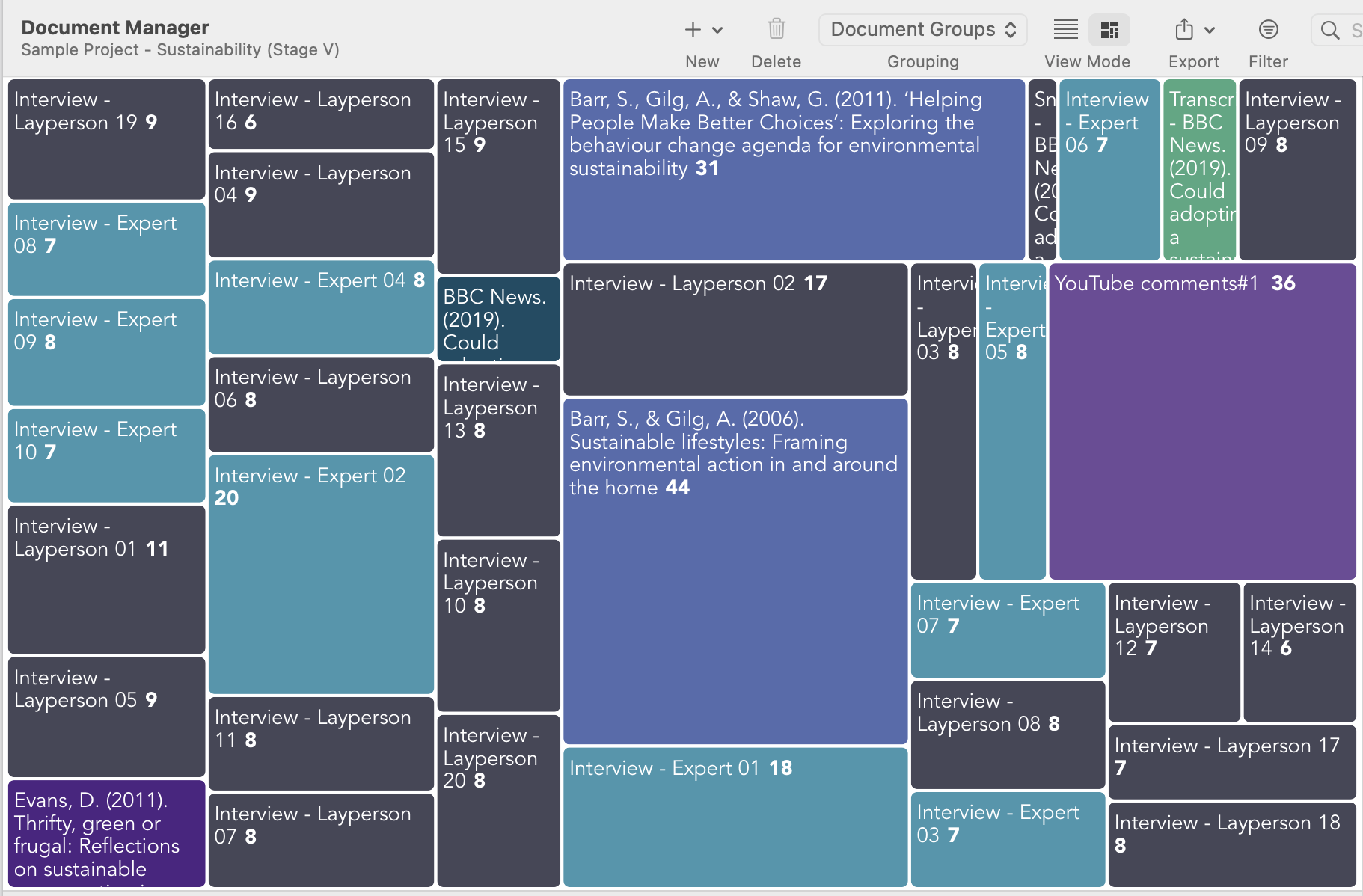
Under View Mode, you can switch between the List view (default) and the Tree Map view.
Below is an example of how the Tree Map view appears:
Export: You have the option to export a spreadsheet for Numbers or Excel, or a report as text file (Word, PDF). The text reports are customizable. See Creating Reports. Via the spreadsheet option you get a WYSIWYG report of the manager. You can exclude columns, by clicking on any of the column headers and select what should be included in the report.
Filter: Via the filter, you can query your documents in various ways. For further detail see Available Operators for Querying. For further information on how to build queries, see Querying Data in the Quotation Manager.
Export: Reports can be created as text file (Word, PDF), as spreadsheet, or image. See Creating Reports.
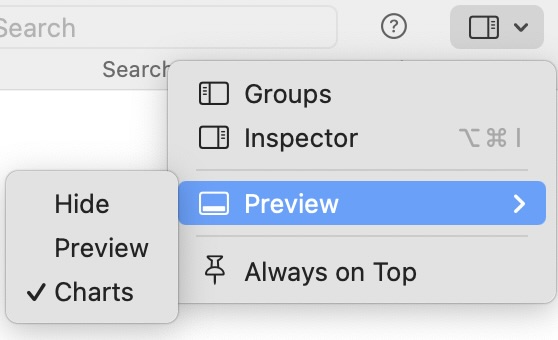
Layout: Under Layout, you have options to activate or deactivate groups and inspector. Under preview, you can switch between viewing the document preview or charts. If you click on the 'pin' (Always on Top), then the windows stays on top.
Organizing Documents in Folders
Documents can be organized into folders. Folders can be contained in other folders. There might be projects that require different levels of document organization. Below is an example with three levels:
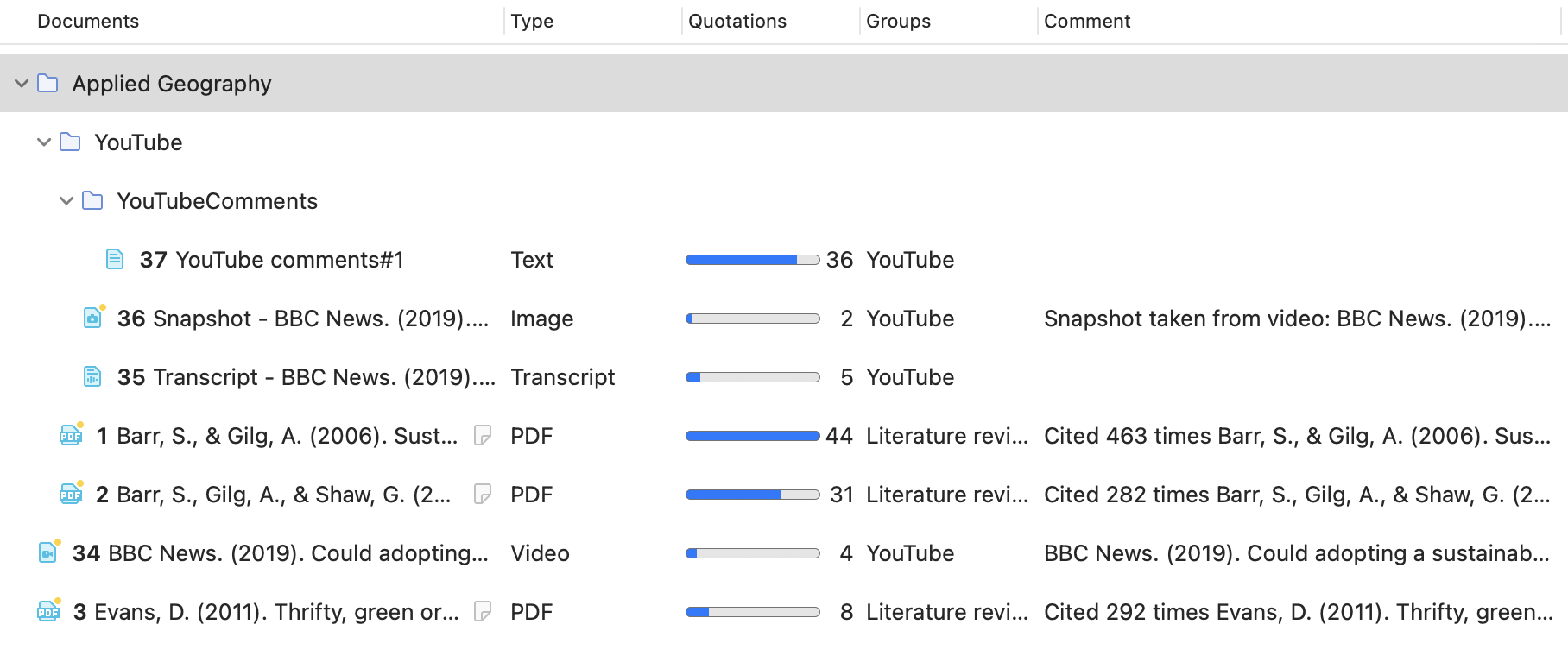
In contrast to groups, a document cannot be in more than one folder. The folder structure is hierarchical; groups are not.
How to create folders
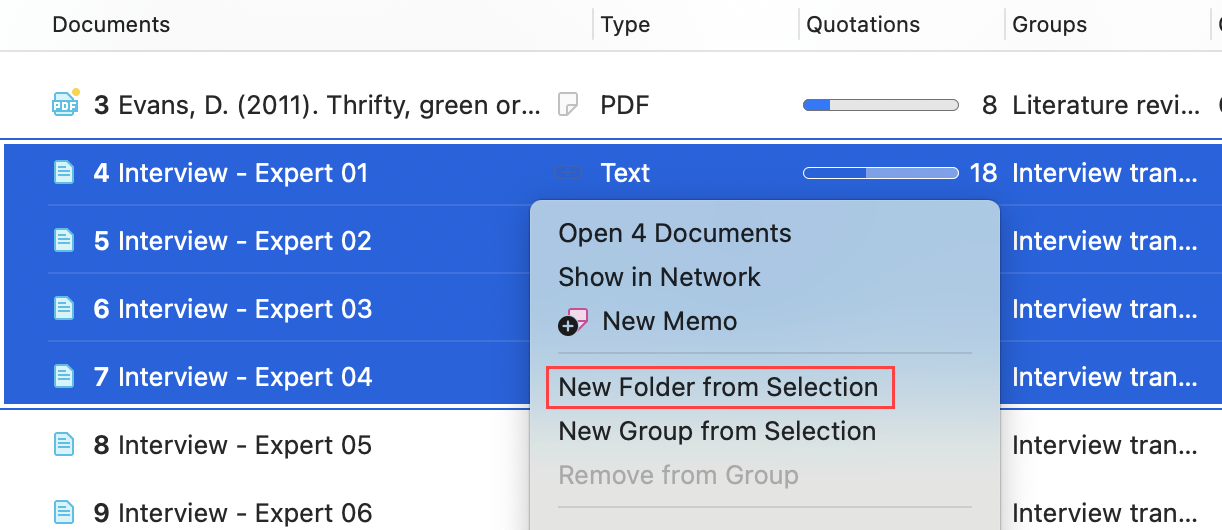
Select one or more documents, right-click and select the option New Folder from Selection from the context menu.
If you delete a folder, all content in the folder is also deleted.