
Networks
Networks allow you to conceptualize your data by connecting sets of related elements together in a visual diagram. With the aid of networks you can express relationships between codes and quotations; and you can link other entities like and memos, documents and groups. Also networks themselves can be "nodes" in a network.
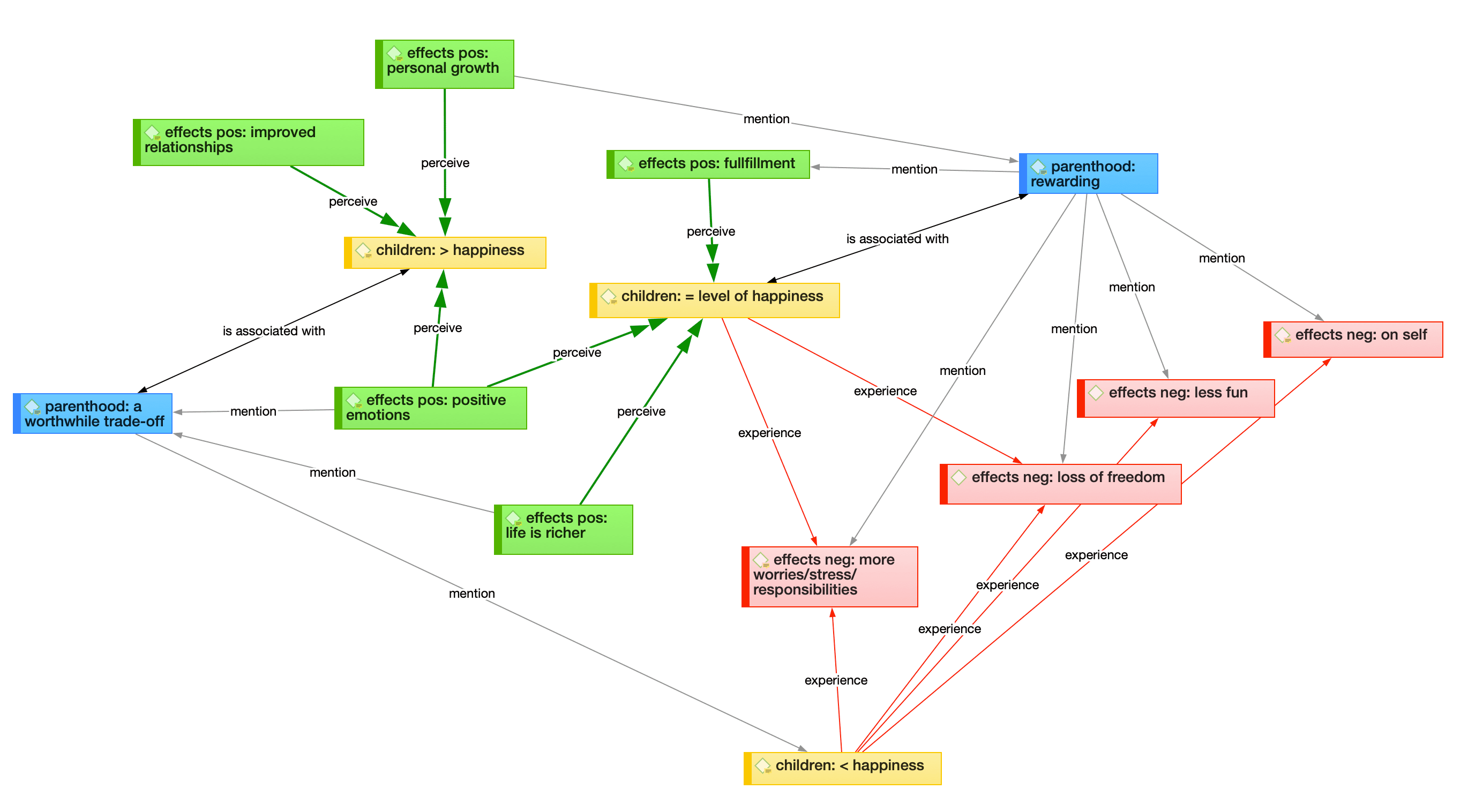
Nodes, Links and Relations
A node is any entity that is displayed in a network . You can change their look and move them around in the network editor.
A link is a line that allows you to connect two entities.
Relations allow you to name links between two codes or between two quotations.
Network Manager
The Network Manager contains a list of all saved networks that you have created. It can be used to access a network, to delete existing networks, or to write and edit comments. See Network Manager.
Organizing Networks in Folders
Networks can be organized into folders. Folders can be contained in other folders. There might be projects that require different levels of network organization. Below is an example with three levels.
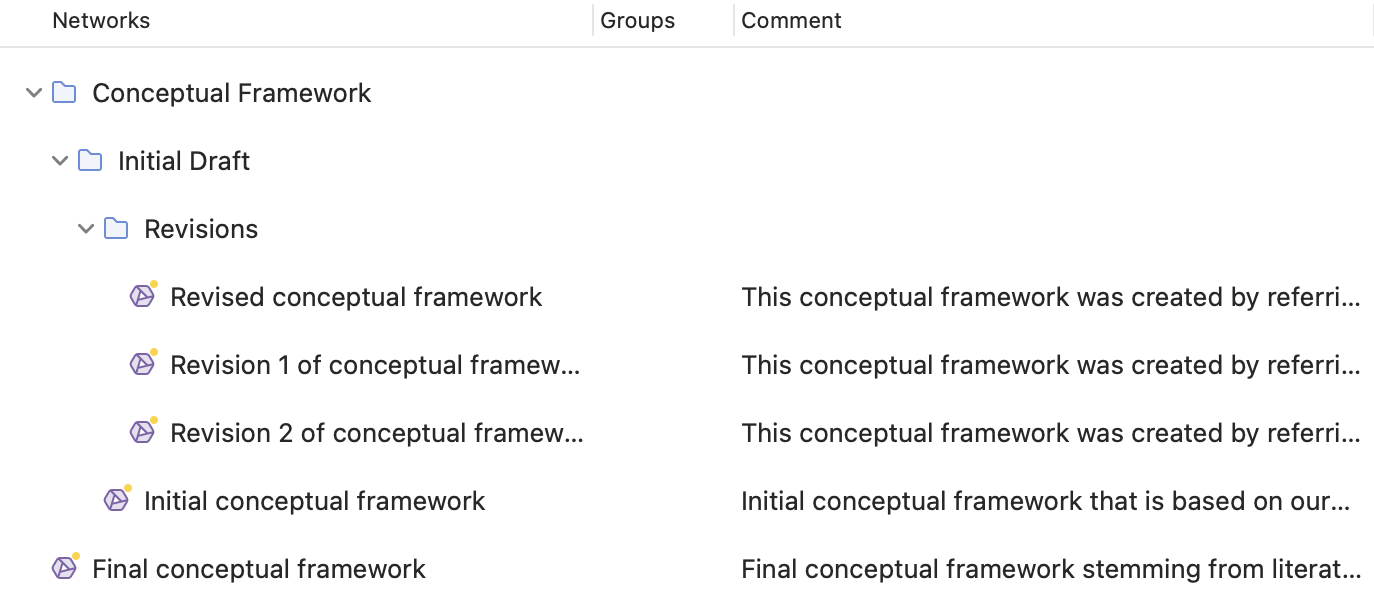
In contrast to groups, a document cannot be in more than one folder. The folder structure is hierarchical; groups are not.
How to create folders
In the Network Manager ribbon, click New and select Folder.
Or:
Select one or more networks, right-click and select the option New Folder from Selection from the context menu.
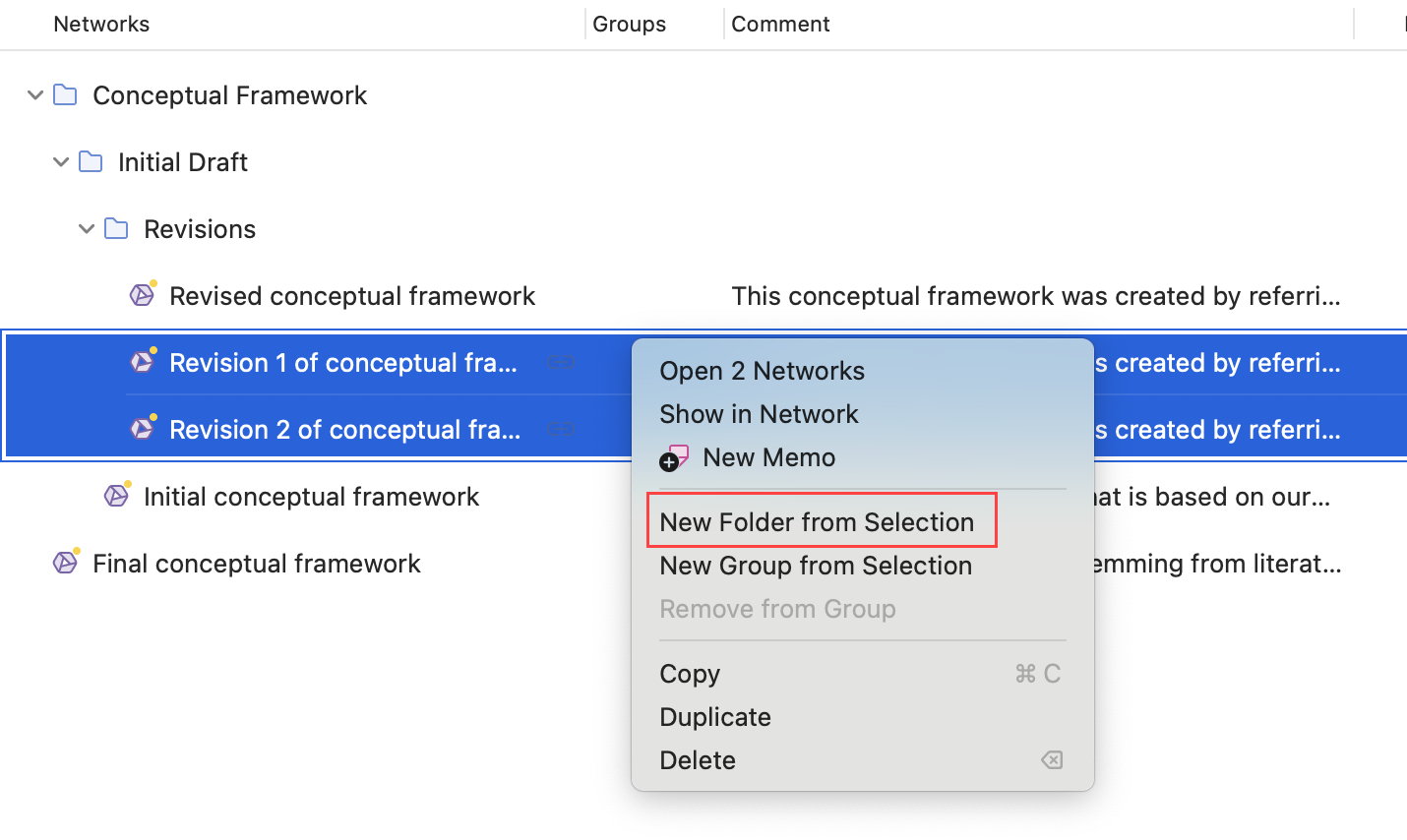
If you delete a folder, all content in the folder is also deleted.
Network Editor
The network editor displays and offers all editing capability to construct and refine networks. In addition, it allows the visual creation and traversal of hypertext structures.
Link Manager
The Link Managers provide an overview of all code-code links and of all hyperlinks you have created. See Link Manager.
Relation Manager
The Relation Manager allows you to modify existing relations or to create new relations. See Creating New Relations.
Find more information on the network function see Working with Networks.