
Analyzing Survey Data
Analyze your survey by working in the grid, coding responses, and comparing respondent groups.
Getting Around the Grid
The survey grid is interactive. You can rearrange it to see your data from different angles.
Single Participant Mode
For large surveys with many questions, reading the entire grid becomes unwieldy. Single Participant Mode displays one respondent’s answers in a vertical list—like reading an interview transcript. This is useful for:
- Getting to know individual respondents
- Coding an entire respondent’s answers in one focused view
- Surveys with many questions (displaying all columns at once becomes impractical)
Click the Single Participant button in the toolbar. The view switches to show one respondent with all their answers stacked vertically. You’ll see navigation arrows at the top to move to the previous or next respondent.
You can combine this mode with question filters to focus on specific questions. For example, filter to show only demographic questions, or only open-ended questions.
If you’re familiar with earlier ATLAS.ti survey imports where each respondent was a separate document, this mode provides a similar experience—but now you have the full survey in one place with the ability to switch between grid and single-respondent views as needed.
Transpose (Rotate the View)

Transpose swaps rows and columns. Normally you see respondents as rows and questions as columns. Transpose flips it—questions become rows and respondents become columns. This is helpful for comparing side-by-side how each respondent answered the same question.
The transposed view is temporary and resets when you close the document—it doesn’t change your actual data.
Filter to Focus
Filter shows only the respondents or questions you’re interested in. For example:
- Show only respondents in a certain age range
- Show only specific questions
- Combine both to zoom in on a particular analysis
Filters don’t change your data either—they’re just a viewing preference.
Coding in the Grid
Creating Codes
Open-ended responses (white cells) are ready to code:
- Click in a white cell to position your cursor
- Select text (click and drag, or use keyboard shortcuts):
- Double-click = select a word
- Triple-click = select a sentence
- Click four times = select a paragraph
- Click five times = select the entire cell - Right-click and choose Apply Codes… (or use your keyboard shortcut)
- Assign an existing code or create a new one
You can also choose Quick Coding or Code In Vivo from the right-click menu.
Building Your Code System
The survey comes with automatic codes for each question. As you code the open-ended responses, you’ll likely:
- Refine codes by combining similar ideas under one code
- Create new codes for themes that cut across multiple questions
- Organize codes into a logical hierarchy (parent codes with sub-codes)
See Working With Codes for detailed guidance.
Exploring Your Data
Before diving into detailed coding, get a quick overview:
-
Word Lists and Clouds: See the most common words and phrases your respondents used
-
AI Coding: Let ATLAS.ti suggest codes based on response content
-
Sentiment Analysis: Quickly see how respondents feel (positive, negative, neutral)
Comparing Respondent Groups
Once you’ve coded your responses, use ATLAS.ti’s comparison tools to find patterns:
- Code Co-occurrence Table: See which codes appear together. Since closed-answer codes (like “Marital status: married”) are linked to case codes (like “Alice”), this table reveals patterns like “Which themes do married respondents mention most?” or “What respondent characteristics appear alongside the code ‘cost concern’?” This is your primary tool for comparing respondent groups.
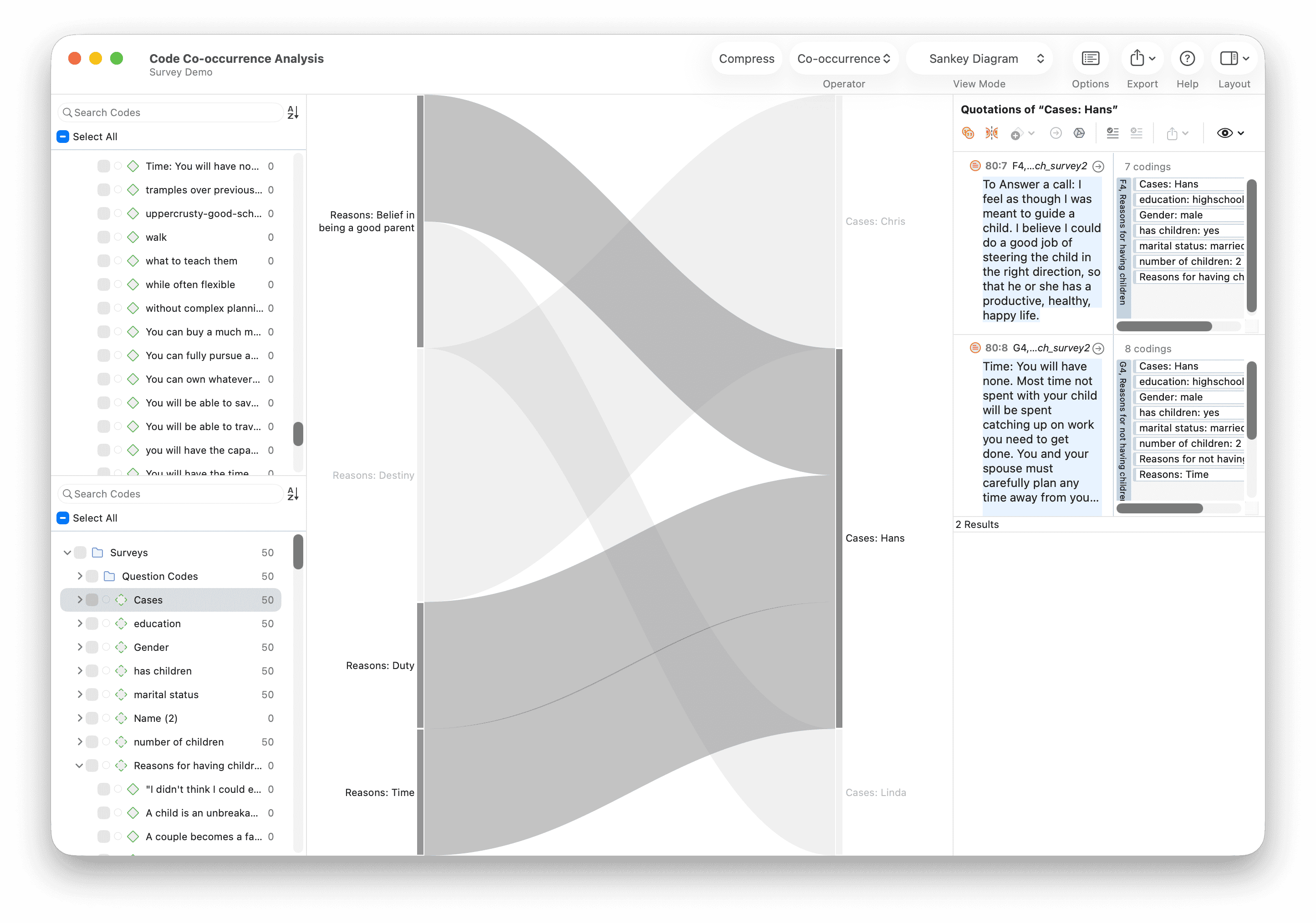
- Query Tool: Find specific combinations of codes and respondent properties. Example: “Show me all open-ended answers from married respondents that are also coded with ‘satisfaction’”
Printing and Exporting
See Export for how to export your survey data or create reports for stakeholders.