
Importing Survey Data
Starting the Import
From the main menu, select Document > Import > Survey.
Select the spreadsheet file (Excel, CSV, or ODS format) and click Open.
For CSV files, a dialog will ask you to specify the field delimiter.
The Survey Import wizard opens to guide you through the mapping process.
Each import creates a new survey document. If you re-import data (e.g., with updated responses), a new document is created with the same name. Existing codes are reused rather than duplicated, so you can build on previous imports.
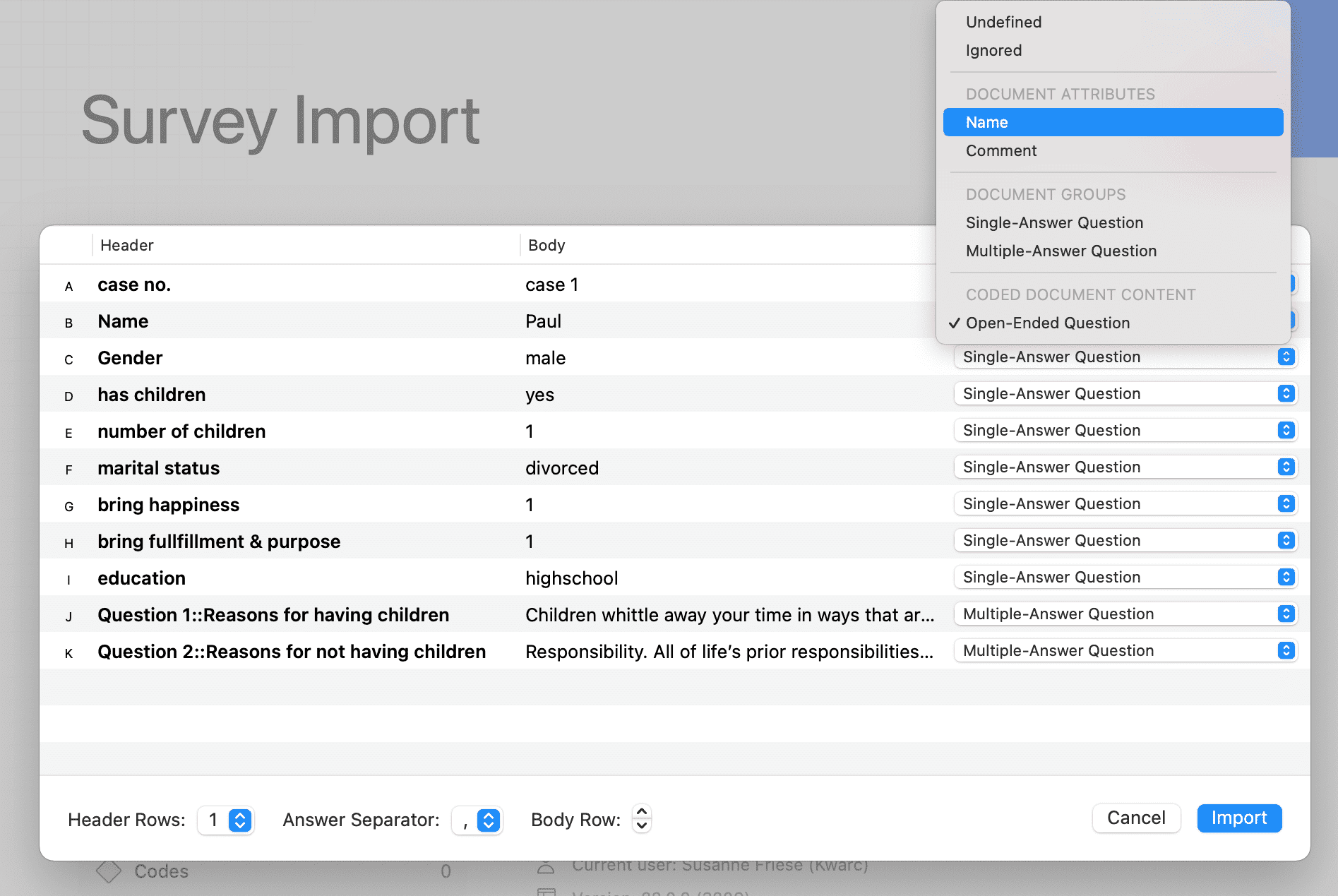
Mapping Column Types
For each column in your survey, tell ATLAS.ti what it contains. This is how it knows what to display in the grid and what to code automatically.
Column Type Options
Undefined: ATLAS.ti guesses what each column contains, but if it can’t figure it out, the column stays “undefined”.
Ignored: Skip this column entirely—don’t import it.
Name: The column that identifies each respondent (e.g., participant ID, first name, or both). If you don’t specify a name column, respondents will be labeled “Case 1”, “Case 2”, etc. If a name appears more than once, duplicates are marked “(2)”, “(3)” and so on.
Comment: If you have a column with notes about the respondent (e.g., interviewer notes), select this. The text becomes the comment on that respondent’s case code.
Single-Answer Question: Questions where respondents pick one answer (e.g., “What is your marital status?” with options single/married/divorced). These columns become grey cells in the grid—not editable.
Multiple-Answer Question: Questions where respondents can select multiple answers (e.g., “Which of these skills do you have?”). If respondents selected multiple options, they’re separated by a character (comma or semicolon). When importing, you’ll specify which separator your data uses.
Open-Ended Question: Text responses that you want to code and analyze (e.g., “What could be improved?”). These columns have white cells that you can select, highlight, and code.
What Codes Are Created?
When you import, ATLAS.ti automatically creates codes organized in a Surveys folder:
-
From Respondent Name: A case code for each respondent under a Cases parent code. Example: “Cases: Alice”, “Cases: Bob”, “Cases: Carol”. These codes help link respondent properties to their answers.
-
From Closed-Answer Questions: A parent code for the question, with child codes for each answer. Example: for “Marital status?” with answers “single”, “married”, “divorced”:
- Parent code:
Marital status- Child code:
single - Child code:
married - Child code:
divorced
- Child code:
Each answer is linked to the respondent’s case code, so you can later ask: “Which themes appear most in responses from married respondents?”
- Parent code:
-
From Open-Ended Questions: A parent code for the question. Each non-empty answer becomes a quotation, automatically coded with the question code, the respondent’s case code, and all of that respondent’s answer codes.
Code groups are also created (Open-ended questions and Closed questions) to organize your codes.
These auto-generated codes give you a head start—refine and add to them as you analyze the data.
Designing Your Column Headers
If your Excel headers use the format Question 1::Tell me about your experience, ATLAS.ti will split this:
Question 1→ becomes the code nameTell me about your experience→ becomes the code comment
Use :: to separate label from comment. This is optional but recommended for open-ended questions to keep names short.
Import Dialog Controls
Below the column list you’ll find controls to configure the import:
-
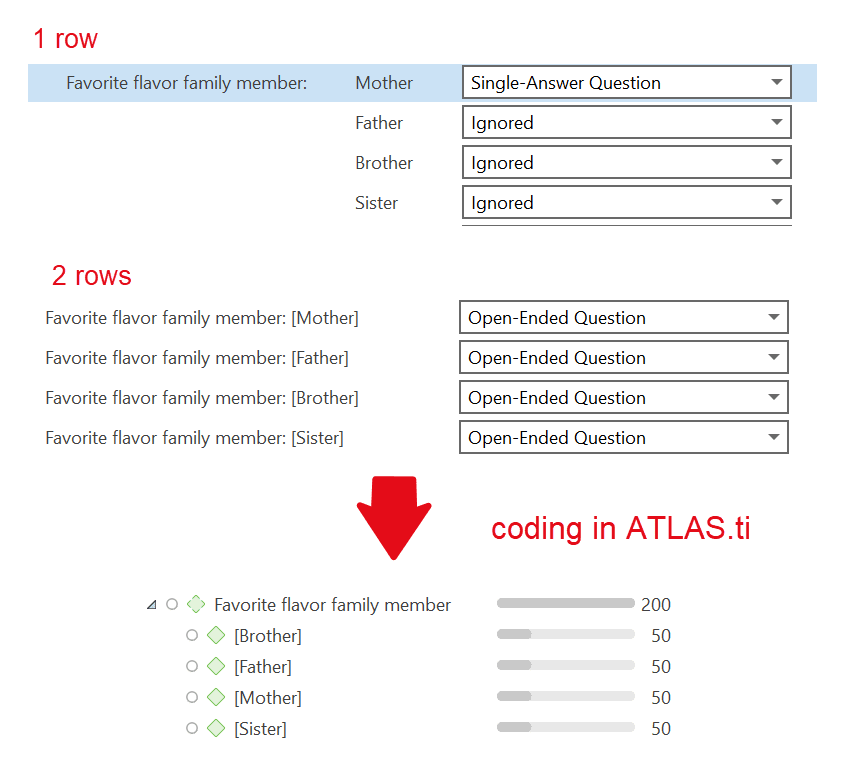
Header Rows: Set the number of header rows (typically 1, but some survey tools use 2). If your file has multiple header rows:
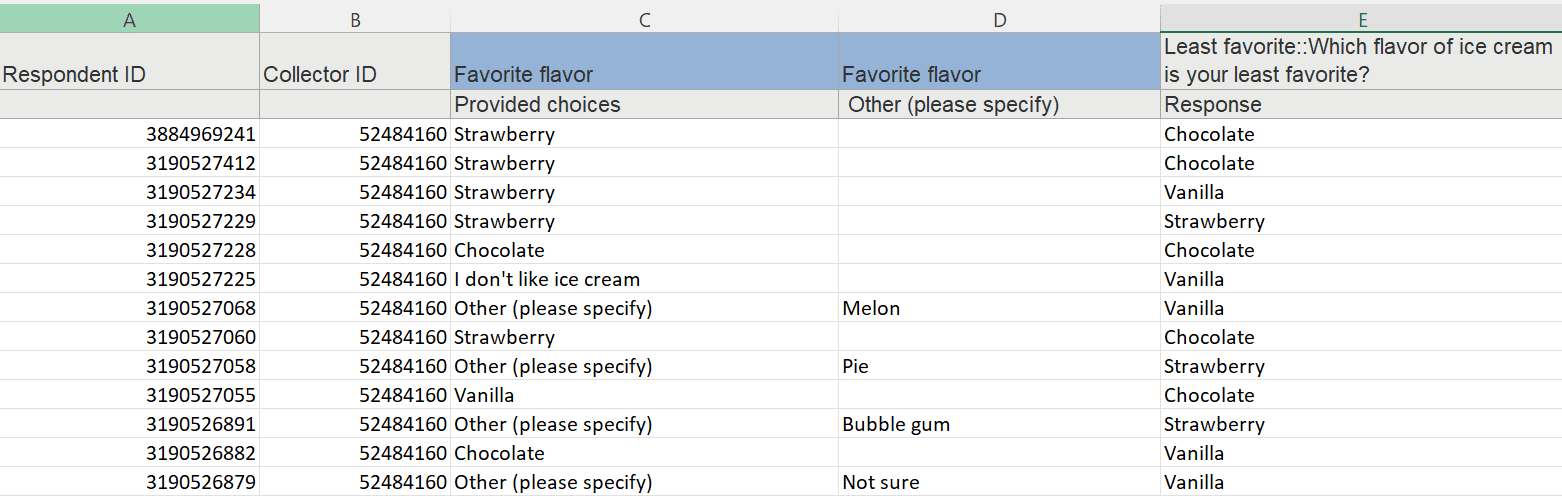
Change from 1 to 2:
-
Body Row: Navigate through rows to preview values and verify your column mappings.
-
Answer Separator: For multiple-choice questions, specify the separator character. Check your file to see if answers are separated by comma (,) or semicolon (;), then select the matching separator.
After Import: The Survey Document
Once import completes, you have one survey document.
Open the survey document to see the grid:
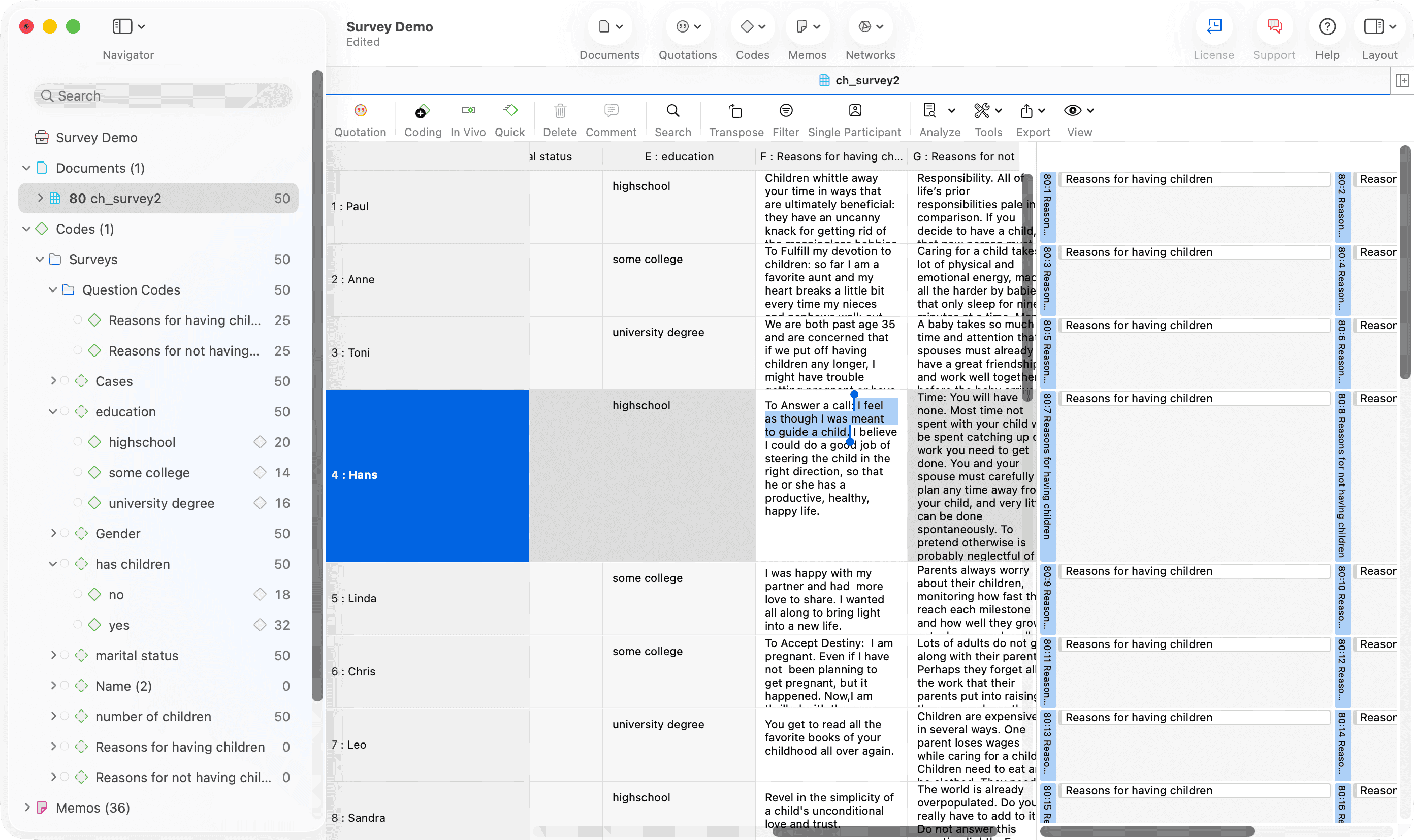
The Survey Grid
The grid shows:
- Respondent identifiers: Respondent names or IDs (grey, not editable)
- Question columns: Each question as a column
- White cells = open-ended answers (selectable and codeable)
- Grey cells = closed answers (yes/no, selections, etc.)
- Right margin: Shows codes and quotations for easy review
Coding Open-Ended Answers
To code text in a white cell:
- Click in the cell to place your cursor
- Select text (click and drag, or use keyboard shortcuts)
- Right-click and choose Apply Codes… (or use your keyboard shortcut)
- Assign an existing code or create a new one
Text selection shortcuts:
- Double-click = select a word
- Triple-click = select a sentence
- Click four times = select a paragraph
- Click five times = select the entire cell
Other options from the right-click menu include Quick Coding and Code In Vivo.
Next Steps
After import, you’re ready to:
- Analyze the survey data using grid features like transpose and filter
- Use comparison tools to see patterns across respondent groups
- Create codes for themes and patterns you notice in the open-ended responses