
Memo Manager
The Memo Manager is used to keep track of your writing. You can create, read and review, comment, sort and organize, and group your memos. Further options are to view a memo and its connection in a network, or to turn a memo into a document for further analysis.
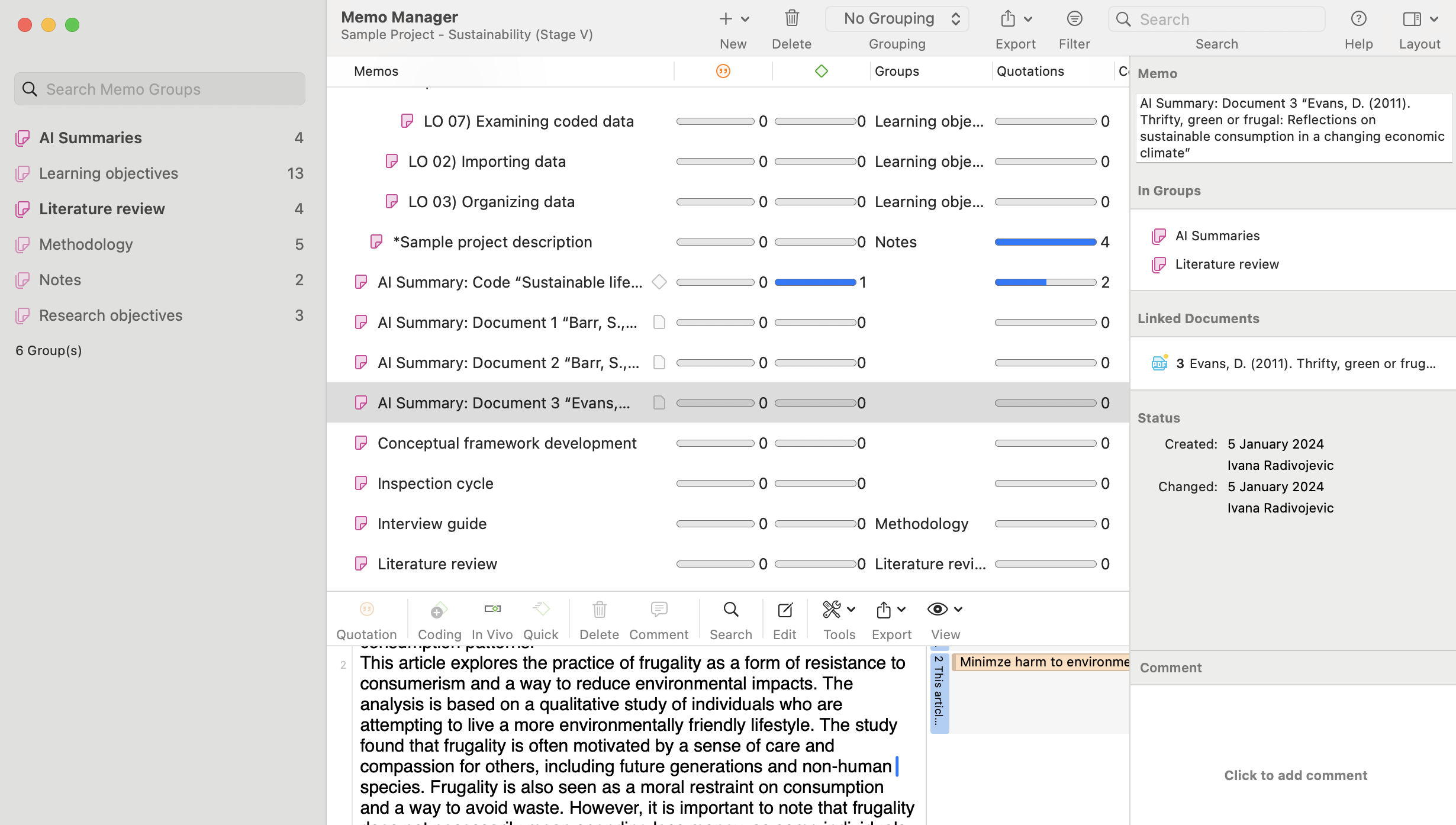
Groundedness: Number of quotations to which a memo is connected.
Density: Number of codes and other memos to which the memo is connected.
Double-click opens the memo editor as floating window. This window can be docked into the currently active region.
Ctrl + Click opens the context menu, which allows opening the list of quotations that are linked to a memo (among other options).
Drag & Drop
You can attach a memo to a quotation by dragging it onto the quotation in the document or the margin area.
A memo can also be dragged to a quotation, code or memo in the Project Explorer or any other list. Vice versa, you can also drag quotations, codes or memos from any list or from the margin area to a memo to link it.
Filter
Click on one or more memo groups in the filter area on the left to set a local filter. This means only the items in the manager are filtered.
Organizing Memos in Folders
Memos can be organized into folders. Folders can be contained in other folders. There might be projects that require different levels of memo organization. Below is an example with three levels:
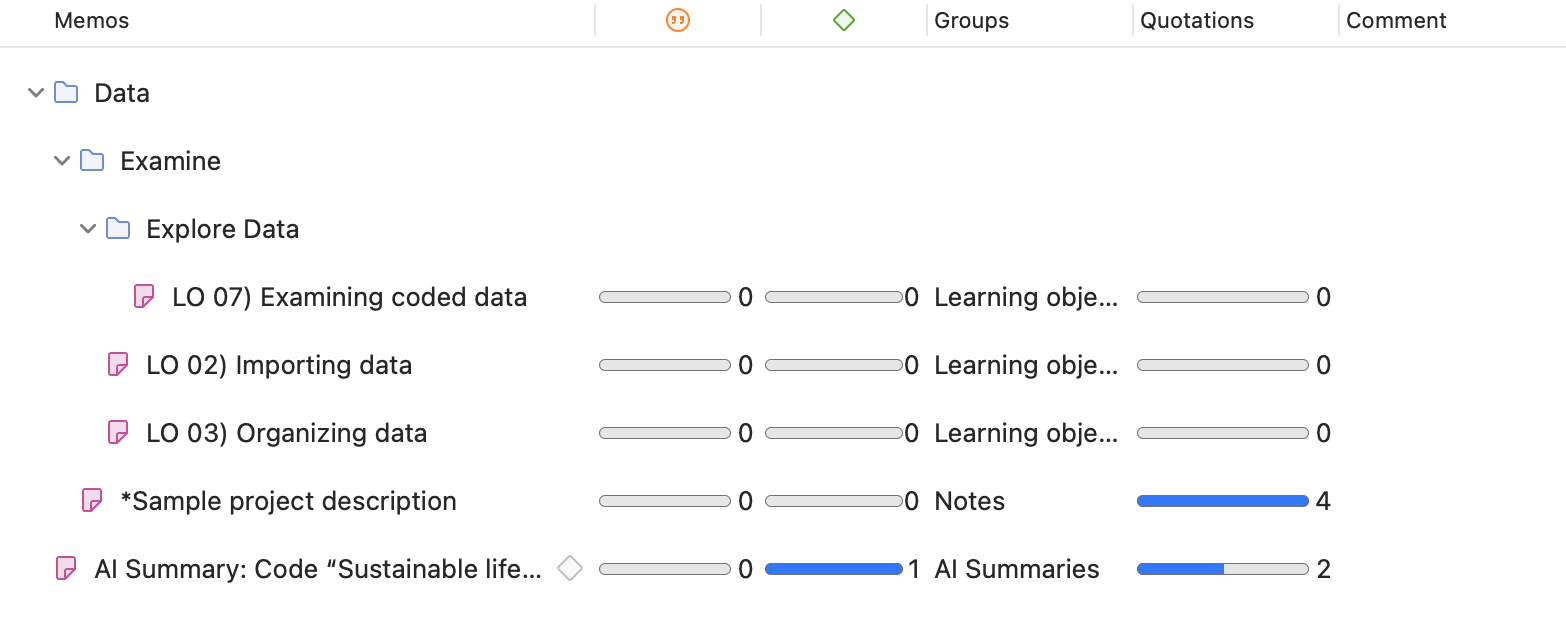
In contrast to groups, a memo cannot be in more than one folder. The folder structure is hierarchical; groups are not.
How to create folders
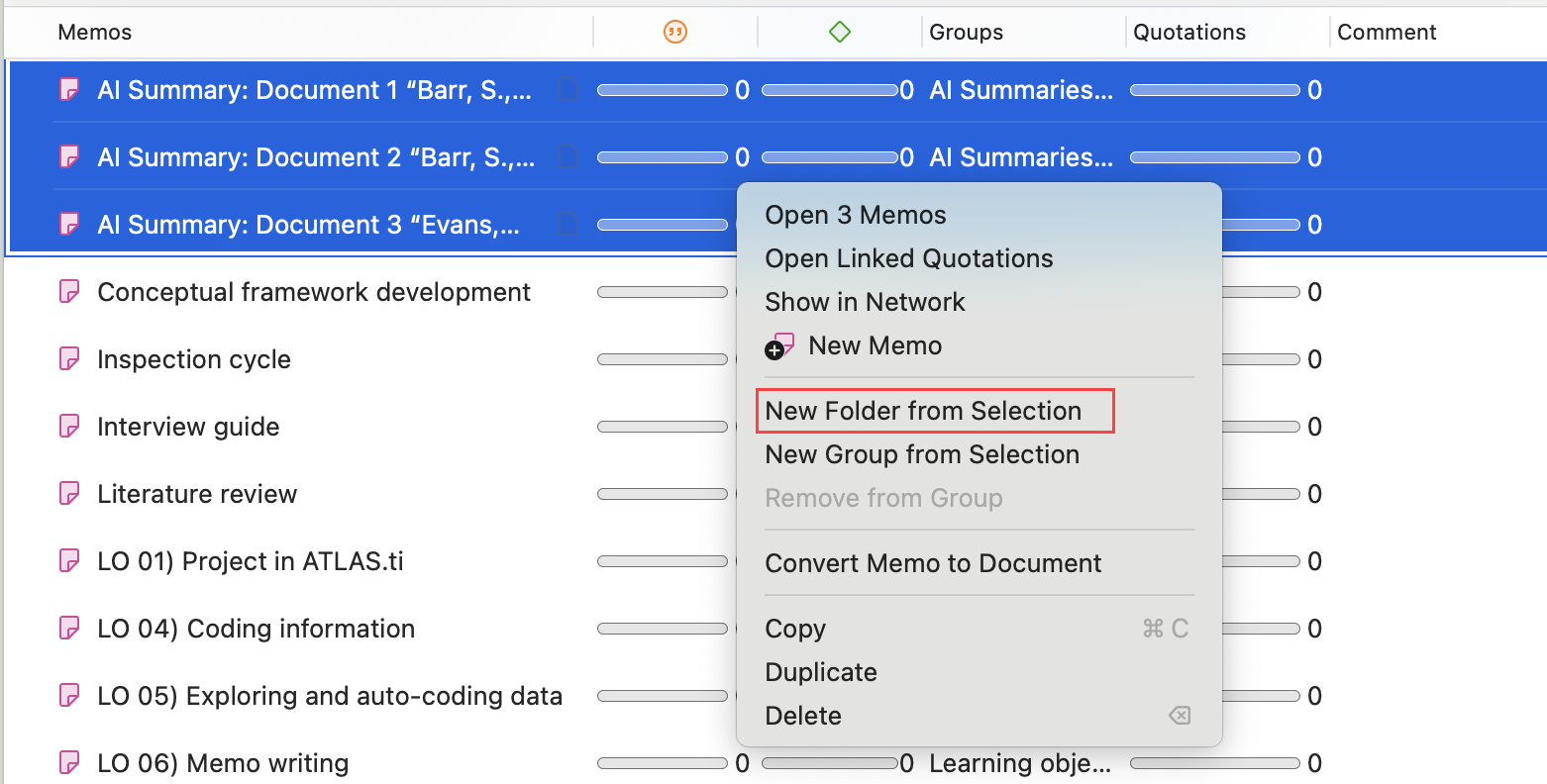
Select one or more memos, right-click and select the option New Folder from Selection from the context menu.
If you delete a folder, all content in the folder is also deleted.